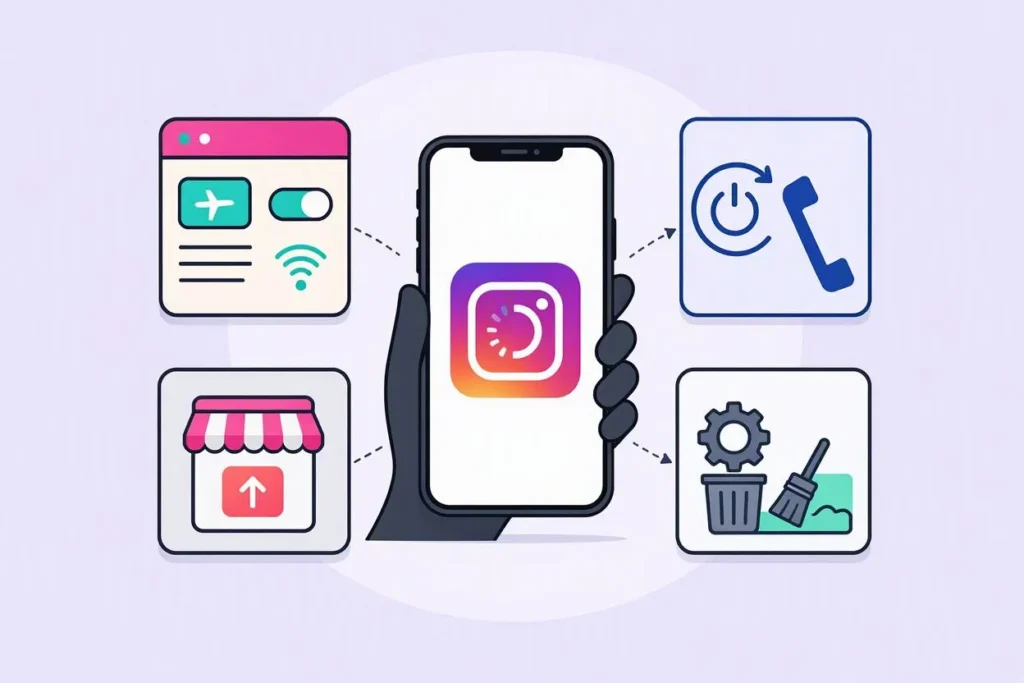
If Instagram is not opening, refreshing, or showing new posts, you may be wondering how to fix instagram not loading without wasting time.
This problem can happen because of a weak internet connection, an outdated app, temporary glitches, full cache, or problems with Instagram itself.
Fortunately, many Instagram loading issues can be solved with a few simple steps. In this guide, we will cover practical solutions that can help you get Instagram working smoothly again.
How to Fix Instagram Not Loading by Checking Your Internet Connection
1. Check Your Wi-Fi Connection
Start by checking whether your Wi-Fi is connected properly.
A weak or unstable connection can prevent Instagram from loading correctly.
2. Try Another Website
Open another website or app that requires internet access.
If that also fails, your internet connection may be the real problem.
3. Turn Wi-Fi Off and On
Switch your Wi-Fi off for a few seconds and then turn it back on.
This simple step can sometimes refresh the connection and solve loading issues.
4. Move Closer to the Router
If your Wi-Fi signal is weak, move closer to your router.
A stronger signal can make Instagram load images, videos, and stories more smoothly.
5. Restart Your Router
Turn your router off and wait for a short moment before restarting it.
A fresh connection may resolve temporary network problems affecting Instagram.
6. Switch to Mobile Data
Try opening Instagram using mobile data instead of Wi-Fi.
If it works on mobile data, your Wi-Fi connection may need attention.
7. Check Your Data Connection
Make sure mobile data is actually enabled on your phone.
Also check whether other apps can connect to the internet using the same connection.
8. Disable Airplane Mode
Check that Airplane Mode is turned off before opening Instagram.
If it was accidentally enabled, your phone may not have an active internet connection.
9. Refresh Your Network
Turn your phone’s Wi-Fi or mobile data off and then turn it back on.
This can help establish a fresh connection with your network.
10. Check Your Internet Speed
Very slow internet can make Instagram appear frozen or endlessly loading.
Testing your connection can help you understand whether speed is causing the issue.
11. Avoid Overloaded Networks
Too many devices using the same Wi-Fi can reduce available bandwidth.
Disconnecting unused devices may improve Instagram’s loading performance.
12. Try a Different Wi-Fi Network
If possible, connect your phone to another trusted Wi-Fi network.
If Instagram works there, your original network may be responsible.
13. Check Other Apps
Open apps such as a browser or another social platform.
If several apps are struggling, focus on fixing the internet connection first.
14. Refresh the Connection Before Reopening Instagram
Close Instagram after changing your network connection.
Then open it again to give the app a fresh opportunity to connect.
15. Avoid Weak Signal Areas
Walls, distance, and interference can sometimes weaken Wi-Fi signals.
Using Instagram where the connection is stronger can improve loading.
16. Check Your Mobile Data Availability
If you use cellular data, make sure your data allowance has not been exhausted.
A restricted connection may prevent Instagram from loading properly.
17. Reconnect to Wi-Fi
Forget the Wi-Fi connection only if necessary, then reconnect using the correct password.
This can refresh the network settings between your phone and router.
18. Test Instagram After Connecting
Once your internet connection looks stable, open Instagram again.
Give the app a few moments to refresh its content before trying additional fixes.
19. Look for Connection Interruptions
Temporary network interruptions can affect Instagram even when your phone shows Wi-Fi.
Checking whether other devices have internet access can help identify the issue.
20. Use the Most Stable Connection Available
Choose the connection that consistently works best on your device.
A stable network is one of the simplest answers when learning how to fix Instagram not loading.
How to Fix Instagram Not Loading by Restarting Your Device
1. Restart Your Phone
A basic restart can clear temporary system problems.
After restarting, open Instagram and check whether the loading issue has disappeared.
2. Close Instagram Before Restarting
Remove Instagram from your recently opened apps before restarting.
This gives the app a fresh start when you open it again.
3. Wait After Restarting
Allow your phone a moment to reconnect to Wi-Fi or mobile data.
Opening Instagram immediately may not help if the network has not reconnected yet.
4. Check Instagram After Rebooting
Open the app once your phone has fully restarted.
A temporary software glitch may have been resolved during the restart.
5. Restart After an App Freeze
If Instagram becomes completely unresponsive, restarting your device can help.
It can close background processes that may be interfering with the app.
6. Keep Your Phone Updated
Check whether your device has pending system updates.
Older software can occasionally create compatibility problems with newer apps.
7. Free Some Storage Space
A phone with very little available storage may experience performance issues.
Removing unnecessary files can help the device and apps operate more smoothly.
8. Close Unused Apps
Too many active apps can consume memory and system resources.
Closing apps you are not using may help Instagram run more efficiently.
9. Give Your Phone a Fresh Start
If you have not restarted your phone recently, this is an easy troubleshooting step.
A fresh system session can sometimes resolve small background errors.
10. Check Instagram After Charging
If your phone is extremely low on battery, some devices may limit background activity.
Charge it sufficiently and then check whether Instagram loads normally.
11. Avoid Opening Too Many Apps Together
Running many demanding apps simultaneously can affect performance.
Close unnecessary apps before testing Instagram again.
12. Restart After Changing Network Settings
If you recently changed Wi-Fi, mobile data, or network settings, restart your device.
This can help the changes take effect properly.
13. Check Your Phone’s Performance
Notice whether other apps are also unusually slow.
If they are, the problem may involve the device rather than Instagram alone.
14. Reopen Instagram Carefully
After restarting, launch only Instagram first.
This makes it easier to see whether the app itself is working normally.
15. Avoid Repeatedly Force Closing the App
Constantly closing and reopening Instagram is not always necessary.
Try a proper restart if the app continues to freeze or load slowly.
16. Check for System Notifications
Your phone may display alerts about storage, updates, or connectivity.
Addressing these notifications can sometimes improve overall app performance.
17. Restart When Instagram Shows a Blank Screen
A blank or stuck screen can sometimes result from a temporary app or system error.
Restarting the phone is a simple first step before trying more advanced solutions.
18. Test Other Features After Restarting
Check whether Instagram can load your feed, profile, and stories.
Testing several areas helps confirm whether the issue has been fixed.
19. Restart Regularly When Needed
Occasional restarts can help clear temporary system activity.
You do not need to restart constantly, but it can be useful during troubleshooting.
20. Try Instagram Again After the Restart
Once everything is running normally, open Instagram and wait briefly.
If the feed appears correctly, the problem may have been a temporary device glitch.
How to Fix Instagram Not Loading by Updating Instagram
1. Open Your App Store
Go to the official app store on your phone.
Look for Instagram and check whether an update is available.
2. Install the Available Update
If Instagram has an update, install it and wait until the process finishes.
Then reopen the app and check whether the loading problem remains.
3. Keep Instagram Updated
Using an older app version can sometimes cause unexpected problems.
Regular updates may include bug fixes and compatibility improvements.
4. Check for Pending Updates
Sometimes an update is available but has not installed automatically.
Manually checking your app store can reveal a pending Instagram update.
5. Restart Instagram After Updating
Do not keep the old app session running after an update.
Close Instagram completely and launch the updated version again.
6. Check Your Device Compatibility
Very old operating systems may not fully support newer app versions.
Keeping your phone’s software updated can help maintain compatibility.
7. Use the Official Instagram App
Make sure you are using the legitimate Instagram application.
Official app versions are generally the safest choice for accessing Instagram.
8. Check Automatic Updates
You can review your device’s automatic update settings.
Keeping apps updated automatically can reduce problems caused by outdated versions.
9. Allow the Update to Finish
Do not open Instagram while an update is still installing.
Wait until the app store confirms the process has completed.
10. Check Your Storage Before Updating
Your phone needs enough free space to download and install updates.
If storage is almost full, remove unnecessary files first.
11. Update Other System Apps
Sometimes related system components also need updates.
Keeping your device software reasonably current can support better app performance.
12. Check Again After an Update
Open Instagram and test the feed after updating.
If everything loads correctly, the outdated version was likely contributing to the issue.
13. Avoid Unofficial App Versions
Modified or unofficial versions can behave unpredictably.
Using the official Instagram app can reduce compatibility and security concerns.
14. Check the App Store Connection
A poor internet connection can prevent an update from downloading properly.
Make sure your connection is stable before attempting the update.
15. Wait for Installation to Complete
Large updates can take some time depending on your connection.
Give the process enough time before deciding that the update has failed.
16. Reopen the App Fresh
After updating, remove Instagram from recent apps if needed.
Then launch it again to create a fresh app session.
17. Check for Multiple Pending Updates
Your device may have many apps waiting for updates.
Installing important updates can sometimes improve overall phone compatibility.
18. Read the App Store Version Information
The app store may show the current version and update details.
This can help confirm that you are running a newer release.
19. Update Before Trying Advanced Fixes
Updating is one of the easiest troubleshooting steps.
Try it before changing more complicated settings on your phone.
20. Test Instagram After Updating
Once the update is installed, browse your feed and open a few features.
This helps confirm whether the new version solved the loading problem.
How to Fix Instagram Not Loading by Clearing Cache and App Data
1. Understand What Cache Means
Cache contains temporary files that help apps load content faster.
Sometimes these files can become outdated or cause unexpected behavior.
2. Clear Instagram Cache on Android
Android devices commonly provide an option to clear an app’s cache.
Open Instagram’s app settings and look for the storage or cache options.
3. Be Careful With App Data
Clearing app data can have a bigger effect than clearing cache.
You may need to sign in again after using this option.
4. Clear Cache Before Clearing Data
Try the less disruptive cache option first.
It can remove temporary files without requiring a complete app reset.
5. Reopen Instagram After Clearing Cache
Once the cache has been cleared, launch Instagram again.
The app may take slightly longer to load initially while creating fresh temporary files.
6. Check Whether the Feed Loads
After clearing cache, check your home feed.
If posts and stories appear normally, the temporary files may have been causing trouble.
7. Use Your Phone’s App Settings
The exact steps can vary between Android devices.
Look for Instagram under your phone’s application settings.
8. iPhone Users Can Reinstall the App
iPhones do not provide the same general cache-clearing option as Android.
Reinstalling Instagram can refresh its stored app files.
9. Remember Your Login Details
Before reinstalling or clearing app data, make sure you know how to sign back in.
This helps avoid unnecessary trouble when opening Instagram again.
10. Avoid Random Cleaning Apps
You do not need unknown third-party cleaners to manage Instagram cache.
Using your phone’s built-in settings is generally a simpler approach.
11. Clear Cache When Instagram Acts Strangely
If Instagram freezes, loads slowly, or repeatedly fails to display content, cache may be worth checking.
It is a straightforward troubleshooting step on supported devices.
12. Check Storage After Clearing Cache
Temporary files can sometimes take up noticeable space.
Clearing unnecessary cache can provide a little additional storage.
13. Reconnect to the Internet
After clearing cache, make sure your internet connection is active.
Instagram still needs a stable connection to download fresh content.
14. Avoid Clearing Data Too Quickly
Do not immediately erase all app data if a simpler solution may work.
Start with restarting, updating, or clearing cache where appropriate.
15. Reinstall Instagram if Necessary
If normal troubleshooting fails, removing and reinstalling the official app can refresh its files.
Download it again from your device’s official app store.
16. Check the App After Reinstallation
Sign in and test the main Instagram features.
A clean installation can sometimes solve persistent app-related loading problems.
17. Give the App Time to Refresh
After clearing data or reinstalling, Instagram may need a little time to load content.
Do not assume it has failed immediately.
18. Check Your Storage Space
A nearly full phone can interfere with app updates and normal operation.
Make sure there is enough space for Instagram to function comfortably.
19. Avoid Deleting Important Phone Data
Only remove files you understand and no longer need.
There is no reason to delete unrelated personal data just to troubleshoot Instagram.
20. Use Cache Clearing as a Simple Fix
Clearing temporary files is one useful part of learning how to fix Instagram not loading.
It can refresh the app without changing your Instagram account itself.
365+ How to Say Thank You for Birthday Wishes on Instagram Story
How to Fix Instagram Not Loading by Checking Phone Settings
1. Check App Permissions
Review Instagram’s permissions in your phone settings.
Missing permissions can sometimes affect certain app features.
2. Check Background Data Settings
Some phones allow users to restrict background data for individual apps.
Make sure Instagram is not unnecessarily restricted.
3. Disable Extreme Data Saving
Data-saving settings can limit how apps load content.
Review these settings if Instagram is struggling to refresh posts or videos.
4. Check Battery Restrictions
Battery-saving modes may limit background activity.
If Instagram is not refreshing properly, review its battery settings.
5. Check Date and Time
Incorrect device time can sometimes cause connection or authentication problems.
Set your phone to use the correct automatic date and time when available.
6. Check Storage Permissions
Instagram may need appropriate access for certain functions on some devices.
Review permissions if specific features are not working correctly.
7. Disable Unnecessary Restrictions
Some phone settings can restrict individual apps to save resources.
Make sure Instagram has not been accidentally limited.
8. Check Data Saver Settings
Your phone may have a system-wide data-saving mode enabled.
Temporarily reviewing this setting can help identify whether it affects Instagram.
9. Check Battery Saver
Battery Saver can change how applications operate in the background.
Try testing Instagram when the battery-saving mode is not restricting it.
10. Review Network Permissions
Make sure Instagram is allowed to use your chosen internet connection.
This is especially useful when Wi-Fi works but mobile data does not.
11. Check App Restrictions
Parental controls, screen-time settings, or device restrictions can sometimes affect apps.
Review only settings that you are authorized to change on your device.
12. Avoid Changing Random Settings
Changing unrelated system settings can create additional problems.
Focus only on options connected to Instagram, internet access, storage, or battery use.
13. Check VPN Settings
If you use a VPN, it may sometimes affect how certain services connect.
Try temporarily disconnecting it to see whether Instagram loads normally.
14. Review Private DNS Settings
Some Android devices offer custom DNS settings.
If you recently changed them and Instagram stopped working, returning to normal settings may help.
15. Check Automatic Time Settings
Incorrect time settings can create connection problems with online services.
Automatic time synchronization is usually a convenient option.
16. Check Your App’s Network Access
Some devices let you control whether apps can use Wi-Fi or cellular data.
Make sure Instagram has the network access it needs.
17. Restart After Changing Settings
If you change an important network or battery setting, restart the app afterward.
This helps Instagram recognize the updated configuration.
18. Test Wi-Fi and Mobile Data Separately
Testing both connections can reveal whether a phone setting affects one network type.
This makes troubleshooting more focused and useful.
19. Return Unrelated Settings to Normal
If you recently experimented with system settings, review those changes.
A recent setting change may explain why Instagram suddenly stopped loading.
20. Test Instagram After Each Change
Make one change at a time whenever possible.
This makes it easier to identify which setting actually solved the problem.
How to Fix Instagram Not Loading When Instagram Has an Outage
1. Consider That Instagram May Be Down
Sometimes the problem is not your phone or internet connection.
Instagram itself can experience temporary service disruptions.
2. Check Other Users’ Reports
If many people are experiencing the same issue, a wider outage may be happening.
Look for reliable current reports rather than assuming your device is broken.
3. Ask Someone You Trust
If appropriate, ask whether Instagram is working for another person.
If it is not working for them either, the issue may be broader than your account.
4. Check Instagram’s Official Updates
Official channels may provide information during major service problems.
These updates can help confirm whether users are experiencing a widespread issue.
5. Avoid Reinstalling Immediately
If Instagram is experiencing an outage, reinstalling the app may not solve it.
First determine whether other users are reporting the same problem.
6. Wait for Service Restoration
Some server-side problems are temporary and resolve without action from users.
Give the service some time before making major changes to your phone.
7. Check Multiple Instagram Features
Try the feed, stories, messages, and profile pages.
If several features fail at the same time, a wider service issue may be possible.
8. Compare Different Connections
Try Instagram on another trusted network if available.
If the same problem continues, the issue may not be your original connection.
9. Check for Login Problems
If Instagram loads but does not allow normal account access, the issue may differ from a simple feed-loading problem.
Follow the appropriate account recovery or login guidance.
10. Avoid Repeated Login Attempts
Repeatedly entering information when the service is unstable may not help.
Wait and try again after confirming your connection is working.
11. Look for Temporary Error Messages
Write down the general error message you see if one appears.
This can make it easier to understand whether the problem is local or service-related.
12. Do Not Blame Your Device Immediately
A loading problem does not always mean your phone has an issue.
Online platforms depend on servers that can occasionally experience interruptions.
13. Check Again Later
If everything else on your phone works normally, try Instagram again after some time.
Temporary service problems may resolve on their own.
14. Keep the App Installed
There is usually no need to remove Instagram simply because it is temporarily unavailable.
Waiting can be more practical when the problem is server-side.
15. Use Reliable Information Sources
Avoid believing every social media post claiming that Instagram is down.
Look for multiple reliable indications before concluding there is an outage.
16. Test After Service Returns
Once reports suggest the service is working again, open Instagram normally.
A simple refresh may be enough to restore your feed.
17. Check Your Internet First
An outage and a local connection problem can look similar.
Confirm that other websites and apps are working before assuming Instagram is down.
18. Be Patient With Temporary Problems
Online services can experience short interruptions.
There may be nothing you need to change on your phone while the service is being restored.
19. Avoid Unnecessary Troubleshooting
If the problem affects many users, advanced phone changes are unlikely to help.
Focus on confirming the situation and waiting for normal service.
20. Try Again Once Instagram Recovers
After the service becomes available, reopen the app and refresh your feed.
This can quickly confirm whether the loading problem was caused by an outage.
How to Fix Instagram Not Loading by Reinstalling the App
1. Consider Reinstallation as a Later Step
Reinstalling can refresh the app’s files and installation.
Try simpler solutions first if the problem is not severe.
2. Remember Your Account Information
Make sure you know the information needed to sign back into your account.
This is important before removing the app from your phone.
3. Remove the Official App
If you decide to reinstall, uninstall the official Instagram application from your device.
Follow your phone’s normal app-removal process.
4. Restart Your Phone
After removing the app, restarting the device can provide a clean system session.
Then continue with the installation process.
5. Reinstall From the Official Store
Download Instagram again from your device’s official app store.
Avoid unofficial sources that may provide altered or unsafe software.
6. Install the Latest Version
The version available in the official store should generally be the current supported release.
Allow the installation to complete before opening the app.
7. Open Instagram After Installation
Launch the freshly installed app once the installation is complete.
Give it a moment to establish its connection and load its basic content.
8. Sign In Carefully
Enter your account information carefully when signing in.
If you have trouble signing in, use Instagram’s official account-help options.
9. Test Your Feed
After signing in, check whether posts are loading normally.
Also test stories or other basic features if necessary.
10. Check Your Internet Again
Reinstalling does not replace the need for a working internet connection.
Make sure your Wi-Fi or mobile data is stable.
11. Allow Necessary Permissions
Review any permissions requested by the app.
Only allow permissions you understand and are comfortable granting.
12. Check Storage Before Installation
Make sure your phone has enough free space for the app.
Insufficient storage can interrupt installation or affect app performance.
13. Avoid Installing Modified Versions
Modified applications can create unexpected compatibility or security issues.
Use the official Instagram application instead.
14. Update Your Phone if Needed
If Instagram repeatedly fails after installation, check your phone’s operating system.
Compatibility can depend on having a supported system version.
15. Reopen the App After Signing In
If the first launch behaves strangely, close and reopen Instagram once.
A fresh session can sometimes resolve a temporary startup issue.
16. Check Several Features
Do not test only the home feed.
Try opening your profile, stories, or messages to see whether the app works generally.
17. Avoid Reinstalling Repeatedly
Installing and removing the app again and again is rarely useful.
If the issue remains, investigate your connection, settings, or Instagram’s service status.
18. Check for a Wider Outage
If the fresh installation still cannot load anything, Instagram itself may be experiencing problems.
Check whether other users are reporting similar issues.
19. Give the App Time to Load
A newly installed app may need a little time to synchronize account content.
Wait briefly before assuming the installation failed.
20. Use Reinstallation as a Final Refresh
A clean installation can solve problems caused by damaged or outdated app files.
It is a useful option when simpler troubleshooting steps have not worked.
How to Fix Instagram Not Loading With Simple Troubleshooting Steps
1. Start With the Simplest Solution
Do not change many settings at once.
Start with your internet connection and then move through the basic troubleshooting steps.
2. Close and Reopen Instagram
Completely close the app and launch it again.
This can fix a temporary freeze without changing any important settings.
3. Refresh Your Feed
Once Instagram opens, pull down on the feed to refresh it.
A fresh request may load posts that previously failed to appear.
4. Check Your Connection
Confirm that your Wi-Fi or mobile data is working.
A stable internet connection is essential for Instagram’s online features.
5. Restart Your Phone
If closing Instagram does not help, restart your device.
This can clear temporary software problems affecting the app.
6. Update Instagram
Check your official app store for a newer version.
Installing updates can address bugs and improve compatibility.
7. Clear Cache When Available
Android users can check Instagram’s cache settings.
Removing temporary files may help if the app behaves unexpectedly.
8. Check Storage Space
Make sure your phone has enough free storage.
Very limited storage can affect general device and app performance.
9. Check System Updates
Review whether your phone has a pending software update.
Keeping the operating system supported can reduce compatibility problems.
10. Test Another Network
Connect to another trusted network if possible.
This can help determine whether your current internet connection is causing the issue.
11. Test Other Apps
If other apps also fail to load, investigate your phone or internet first.
If everything else works, focus your troubleshooting on Instagram.
12. Disable Temporary VPN Connections
If you are using a VPN, test Instagram without it.
A network routing issue can sometimes affect how an app connects.
13. Check Battery Restrictions
Review whether your phone is limiting Instagram because of battery-saving settings.
Allowing normal app activity may improve performance in some cases.
14. Check Data Restrictions
Make sure Instagram can use the internet through your preferred network.
Some devices allow individual apps to have restricted data access.
15. Reinstall if Necessary
If basic troubleshooting does not help, reinstalling the official app can refresh its files.
Remember to have your sign-in information available first.
16. Check for an Instagram Outage
If Instagram suddenly stops working everywhere, the problem may be service-related.
Checking reliable reports can prevent unnecessary changes to your device.
17. Avoid Random Fixes
Do not install unknown applications or follow questionable instructions to repair Instagram.
Simple, trusted troubleshooting methods are usually safer and easier.
18. Test Instagram After Every Major Step
Check the app after restarting, updating, or changing a relevant setting.
This helps you identify which action actually made a difference.
19. Give Temporary Problems Some Time
Not every loading issue needs an immediate technical solution.
A short service interruption may disappear on its own.
20. Follow the Steps in Order
Working from simple solutions toward advanced ones saves time.
This approach makes learning how to fix Instagram not loading much easier.
Last Thoughts
Knowing how to fix instagram not loading can save you from unnecessary frustration. Start by checking your internet connection, restarting your phone, and making sure Instagram is updated. If the issue continues, you can check cache, phone settings, storage, or reinstall the official app.
It is also important to remember that not every Instagram problem comes from your device. Sometimes Instagram may experience a temporary service interruption. By checking the basics first and moving through the solutions carefully, you can usually identify what is preventing the app from loading properly.
FAQs
Why is Instagram not loading on my phone?
Instagram may fail to load because of a weak internet connection, an outdated app, temporary files, phone restrictions, or a service interruption. Checking these areas can help identify the cause.
How do I fix Instagram when it keeps loading?
Start by checking your internet connection and restarting Instagram. If that does not work, restart your phone, update the app, and consider clearing its cache where supported.
Can restarting my phone fix Instagram?
Yes, a restart can sometimes resolve temporary software or connection problems. It is one of the easiest troubleshooting steps to try.
Should I update Instagram if it is not loading?
Yes, checking for an available update is a useful step. App updates can include bug fixes and compatibility improvements.
Can a weak Wi-Fi signal stop Instagram from loading?
Yes, a weak or unstable connection can prevent Instagram from loading posts, stories, videos, and other content properly.
Should I clear Instagram’s cache?
If your device provides a cache-clearing option, it can be worth trying when Instagram behaves unusually. Start with clearing cache rather than deleting all app data.
What if Instagram works on mobile data but not Wi-Fi?
This usually suggests that your Wi-Fi connection or network settings may be involved. Try restarting your router and testing other websites or apps on the same Wi-Fi.
Should I reinstall Instagram?
Reinstalling can help when app files or installation problems are causing trouble. Before doing so, make sure you know how to sign back into your account.
What if Instagram is not loading for everyone?
The problem may be a temporary Instagram service interruption. In that situation, waiting for the service to recover may be more useful than changing your phone settings.
How can I prevent Instagram loading problems?
Keep Instagram and your phone reasonably updated, maintain enough storage space, and use a stable internet connection. These simple habits can reduce common app problems.